How To Use Guide
How to Install Kubuntu 24.04 LTS
🔐 1. Logging In
Launch the app.
Enter your email and password.
Buy access directly from WhatsApp: 8872995753
₹50 for 24 hours.Click Submit to log in.
If you’re already logged in on another device, the app will notify you.
⚠️ If the app doesn’t launch, it’s most likely your internet connection.
Just click once—don’t think your system is slow. It’s probably the internet.
🖥️ 2. Main Interface Overview
Once you're logged in, you'll see:
Links Textbox – Paste all your target links here (one per line).
✅ Always add double the number of links.Example: If running for 60 minutes, add 12 links.
The more links you add, the better the results.
Simulation Mode – Choose one:
Mode 1 – Balanced (click + typing)
Mode 2 – More typing
Mode 3 – More clicking
Duration Field – Type only the number (in minutes):
1 hour =
602 hours =
1205 hours =
300
❌ Don’t type "60 min" or any words — just the number.
Shutdown / Sleep – Choose what your PC should do after it finishes.
- Use Sleep if you're running Upwork (so it pauses your tracker safely).
Start Button – Click to begin simulation.
🧪 3. Starting a Simulation
Paste your links.
Choose a mode.
Enter time (e.g., 120 minutes).
Optional:
Check Sleep if you're using Upwork (to pause your Upwork tracker safely).
Or check Shutdown if you're away from your computer.
Click Start.
🧹 4. Logging Out
- Click Logout from the sidebar.
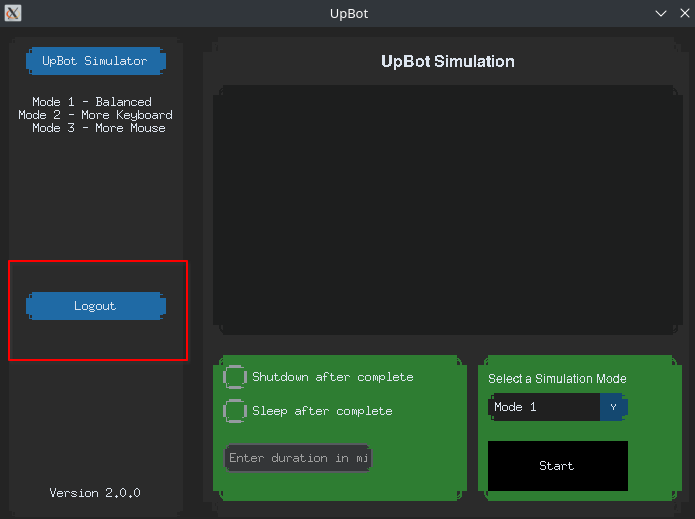
⚠️ Important: Always logout before closing the app.
If you don’t, you may get stuck and have to contact us for help again.